What Should Happen to IT Access When an Employee Leaves Your Company?
When an employee leaves, your company should remove their access at the authorized departure time, preserve the business information you need, transfer responsibilities to approved people, and document what was completed. In Microsoft 365, that involves more than changing a password: Microsoft's offboarding guidance separates access removal, email preservation, mailbox handling, and file access into distinct tasks. Microsoft Learn
For a 20-75 employee business, use a straightforward framework:
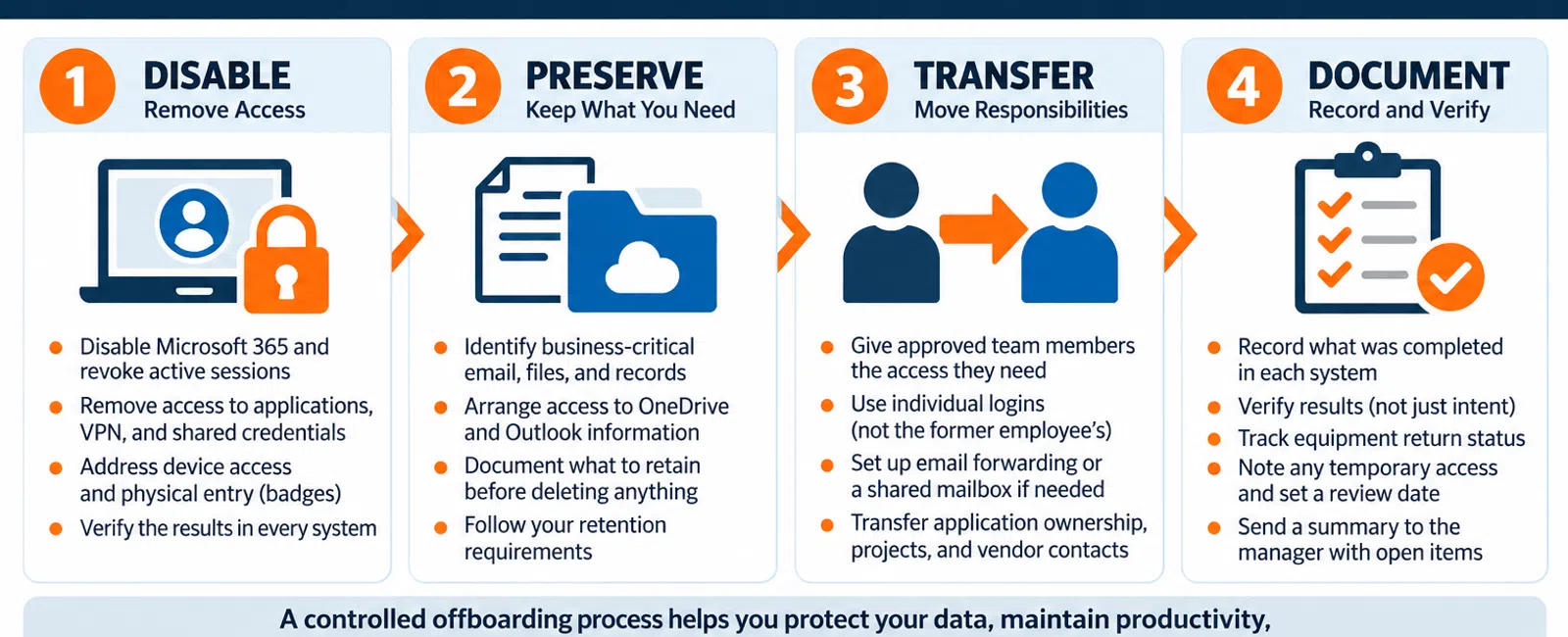
Disable → Preserve → Transfer → Document
The objective is to end the former employee's access without interrupting the company's ability to serve customers, complete projects, or retrieve important records.
Who Should Start the Offboarding Process—and When?
Leadership or HR should authorize the departure and communicate the timing. IT should execute the technical changes. The employee's manager should identify the information, applications, and responsibilities that need a new owner.
Do not leave those decisions to a technician guessing what "please remove this employee" means.
An offboarding request should identify the employee, their last authorized access time and time zone, the approving manager, their equipment, and who should receive access to necessary business information. It should also identify any preservation instructions before accounts or devices are deleted or wiped.
For a planned departure, notify IT as soon as the departure is approved. For an immediate separation, coordinate directly with the person performing the access removal rather than relying on an unacknowledged email.
A practical planning schedule looks like this:
| Timing | What should happen |
|---|---|
| Before the departure, when notice is available | Confirm authorization, inventory access, identify data owners, and arrange equipment return. |
| At the authorized cutoff | Begin coordinated account disabling, session revocation, and remote-access removal. |
| The same day | Verify results, escalate remaining access, and record equipment status. |
| The next business day | Confirm the receiving employees can access the information they need. |
| At an approved review date | Reassess temporary mailbox access, retained accounts, and unnecessary subscriptions. |
These are recommended workflow targets, not promises that every application will complete its changes immediately.
A friendly resignation still deserves the same complete checklist. The process should not depend on whether someone expects a problem.
Use the Disable → Preserve → Transfer → Document Framework
Prepare preservation and ownership decisions before the departure whenever possible. The framework is not a reason to delay access removal while someone finishes sorting through files.
1. Disable: Remove Access Across the Actual Environment
Start with the employee's individual accounts, but do not stop at their email address.
Build the checklist around the systems the person actually used:
| Access category | What IT and the business should check |
|---|---|
| Microsoft 365 and company identity | Sign-in status, password reset, session revocation, and any separate administrator accounts. |
| Servers and remote access | Local directory accounts, VPN connections, remote desktops, and remote-control tools. |
| Business applications | Accounting, customer management, project management, scheduling, payroll administration, and industry software. |
| Shared and external access | Password vaults, shared credentials, customer portals, vendor portals, and access granted by other organizations. |
| Devices and physical access | Company computers, phones, security keys, and coordination with whoever manages badges or door access. |
Microsoft 365 requires more than a password change. Microsoft's guidance includes resetting the password, signing the account out, and blocking sign-in. It also warns that account blocking can take time to take effect. Your IT provider should verify the result rather than treating a submitted command as proof that access has ended everywhere. Microsoft Learn
Other applications need their own attention. Microsoft explains that an application can maintain its own session, which Microsoft Entra cannot directly revoke. Check application-specific accounts and sessions, including systems that allow a separate username and password. Microsoft Learn
For example, disabling Microsoft 365 should not be treated as confirmation that a separate vendor portal has also been handled. Assign someone to verify that portal.
For shared credentials the employee knew, plan a controlled password change. Update approved users and any legitimate dependencies rather than changing a password without understanding what uses it.
Also review company recovery contacts and authentication methods. A departing employee's personal phone should not remain the recovery destination for a company-owned service.
For the broader account-security foundation, see How Secure Should Microsoft 365 Be for a 20-75 Employee Business?.
Device return is a separate task. Arrange collection of company equipment and record what has actually been received. Removing cloud access does not erase locally stored files from an offline laptop. Microsoft specifically notes that remote device actions require connectivity and that offline devices can retain local data. Microsoft Learn
For personal devices, use an authorized company-data removal process where supported and configured. Microsoft Intune supports selective removal from managed applications under specific conditions; that is not a blanket ability to erase every business file from any personal device. Do not make a full personal-device wipe the default offboarding action. Microsoft Learn
2. Preserve: Keep What the Business Needs Before Deleting Anything
Disabling access and deleting information are different decisions.
Before deleting an account, removing licenses, or resetting a laptop, identify what must remain available. Review email, calendars, project documents, local files, OneDrive content, and records inside business applications.
Give each information category a business owner. "Keep everything somewhere" is not a usable handoff instruction.
For Microsoft 365, administrators can arrange access to a former employee's OneDrive and Outlook information. Microsoft also describes moving or copying needed OneDrive files. The method matters: its documented move/copy process has version-history limitations, so confirm preservation requirements before treating a file copy as a complete archive. Microsoft Learn
For ongoing project work, consider an approved shared location rather than leaving essential files dependent on a departed employee's personal workspace.
Email needs a deliberate decision, too. A shared mailbox may be appropriate when authorized employees need historical correspondence or incoming messages. Microsoft notes that converting a mailbox retains its email and calendar information, but the underlying account must remain to support the shared mailbox. Additional steps are still required to prevent the former employee from signing in. Microsoft Learn
Do not remove licensing first and work out the consequences later. Have IT check the intended mailbox configuration, storage, archive, retention features, and other service dependencies before changing licenses. Microsoft's conversion guidance includes specific licensing conditions. Microsoft Learn
Ask leadership, HR, and legal counsel when appropriate to establish retention or preservation instructions. Do not substitute an arbitrary "delete everything after 30 days" rule.
If there is suspected misuse or a preservation request, pause routine deletion and wiping until the authorized preservation plan is clear. Technical controls should support the organization's requirements, not replace decisions from its legal or compliance advisers.
3. Transfer: Move Responsibilities Without Sharing the Former Employee's Login
The next employee should use their own identity.
Do not hand over the departing employee's password and call that a transition. Instead, approve access for named individuals and transfer the responsibilities they actually need.
For email, decide who should receive new messages, whether historical access is necessary, and whether an automatic reply should direct customers to a replacement contact. Microsoft distinguishes forwarding from shared-mailbox access: forwarding handles new incoming messages, while a converted shared mailbox also retains existing correspondence. Microsoft Learn
Set a review date for temporary forwarding or delegated access. Do not automatically give an entire department unrestricted access to a former employee's mailbox.
For applications, look beyond permission to sign in. Check who owns active projects, customer assignments, approval queues, recurring reports, and vendor relationships.
Also identify company services for which the departing employee was the sole administrator or recovery contact. Arrange a verified replacement before removing the old administrative path.
Ask the receiving employee to test the handoff. Can they open the active project? Receive the necessary messages? Complete the next approval?
Where an approved consulting arrangement continues after employment ends, define a separate, limited access arrangement with an expiration date rather than leaving all previous employee access in place.
4. Document: Record Results, Not Just Intentions
"User removed" is not a sufficient completion record.
For each system, record the account involved, the action taken, who performed it, the completion time, and the verification result. Record where information was preserved, who received access, and which temporary arrangements need review.
Equipment status should be equally specific. "Return label sent" is different from "laptop received and checked."
Use clear statuses such as verified complete, pending, or approved exception. Every remaining task should have an owner and a deadline.
An application waiting on a vendor administrator is not complete. Neither is a remote-wipe request that still shows as pending. Microsoft's Intune reporting explicitly distinguishes pending, failed, and successful wipe requests. Microsoft Learn
Keep the administrative record useful without copying unnecessary private employee information into a broadly accessible support ticket.
Finally, send the authorized manager a completion summary. State what is confirmed and what remains outstanding, rather than giving an unqualified "all done" while access or equipment issues remain unresolved.
Hypothetical Example: A Departure at a 45-Employee Company
Consider a hypothetical 45-employee business with staff in Sacramento and Reno. An operations coordinator is leaving Friday at 3:00 p.m. Pacific.
The coordinator uses Microsoft 365, a scheduling application, a customer portal, and a company laptop. They also maintain project documents and receive vendor scheduling requests.
With an incomplete approach, the company changes the email password and assumes the job is finished. Nobody checks the customer portal, identifies the project files, or assigns incoming vendor requests.
Using the four-part framework, the handoff looks different.
Before Friday: The manager identifies the replacement owner for scheduling and active projects. IT inventories the accounts, confirms preservation instructions, and arranges laptop return.
At 3:00 p.m.: IT begins the authorized access-removal actions. The scheduling administrator handles that application, while the customer's portal administrator receives the coordinated removal request. Each result is tracked separately.
Later that day: The approved manager has the necessary mailbox and project access. The customer portal removal is confirmed. The laptop is still in transit, so equipment recovery remains open with an assigned owner.
The next business day: The replacement coordinator confirms they can retrieve the active schedules, access the project documents, and handle vendor communications.
At a separately approved 30-day review, the company reassesses temporary mailbox access and unnecessary subscriptions. That is a handoff review date—not a universal data-deletion deadline.
The difference is measurable: the company knows which access ended, which work transferred successfully, and which tasks remain open.
What Should You Expect From Your IT Provider?
Your provider should be able to explain the offboarding process before the next employee leaves.
Ask who can authorize a request, how an exact cutoff time is coordinated, which systems the provider manages directly, and which require a business owner or outside vendor.
Expect a discussion about data before deletion. Expect verification after account changes. Expect a written summary that distinguishes completed work from unresolved items.
Your business still has responsibilities. Leadership authorizes the departure, managers identify the work that must continue, and application owners help address systems outside the provider's control.
At Integral Networks, Microsoft 365 security configuration, ongoing monitoring, documentation, and vendor coordination are established capabilities. We also require Microsoft 365 Business Premium for managed clients. Those capabilities are relevant to coordinated offboarding, but the departure still needs clear business authorization and ownership decisions.
Make the Next Employee Departure a Controlled Handoff
Before your next departure, choose one recent offboarding and ask:
Can we show what access was removed, what information was preserved, who received responsibility, and what remains open?
If the answer depends on someone's memory, start by documenting the process.
Integral Networks provides managed IT services for businesses in Greater Sacramento and Northern Nevada, with a primary focus on organizations with 20 or more employees. Contact our team to discuss how employee access management fits into your managed IT needs.
Sacramento, CA — (916) 626-4000
Reno, NV — (775) 446-4100
The goal is straightforward: end the former employee's access, preserve necessary business information, transfer the work, and verify the result.